Hallym University Station C
‘Digital Signage Implementation’
‘Digital Signage CMS’
The Station C digital signage project is a system implementation to enable the Hallym University Startup Support Headquarters and 12 partner organizations to operate 20 displays together.
Based on H9’s signage service BRICK Lit, each organization was allowed to manage their own displays and materials, with only approved content being shown on the screens.
The person in charge uploads videos and announcements, schedules them by period, day, and time, and monitors device status from a single web admin screen. Even if the internet is lost, the display continues playing the pre-downloaded content.
Android·Web Player /
AWS Infra & Backup / Manual·Training
GUI Design /
S.W Development /
Cloud Infra
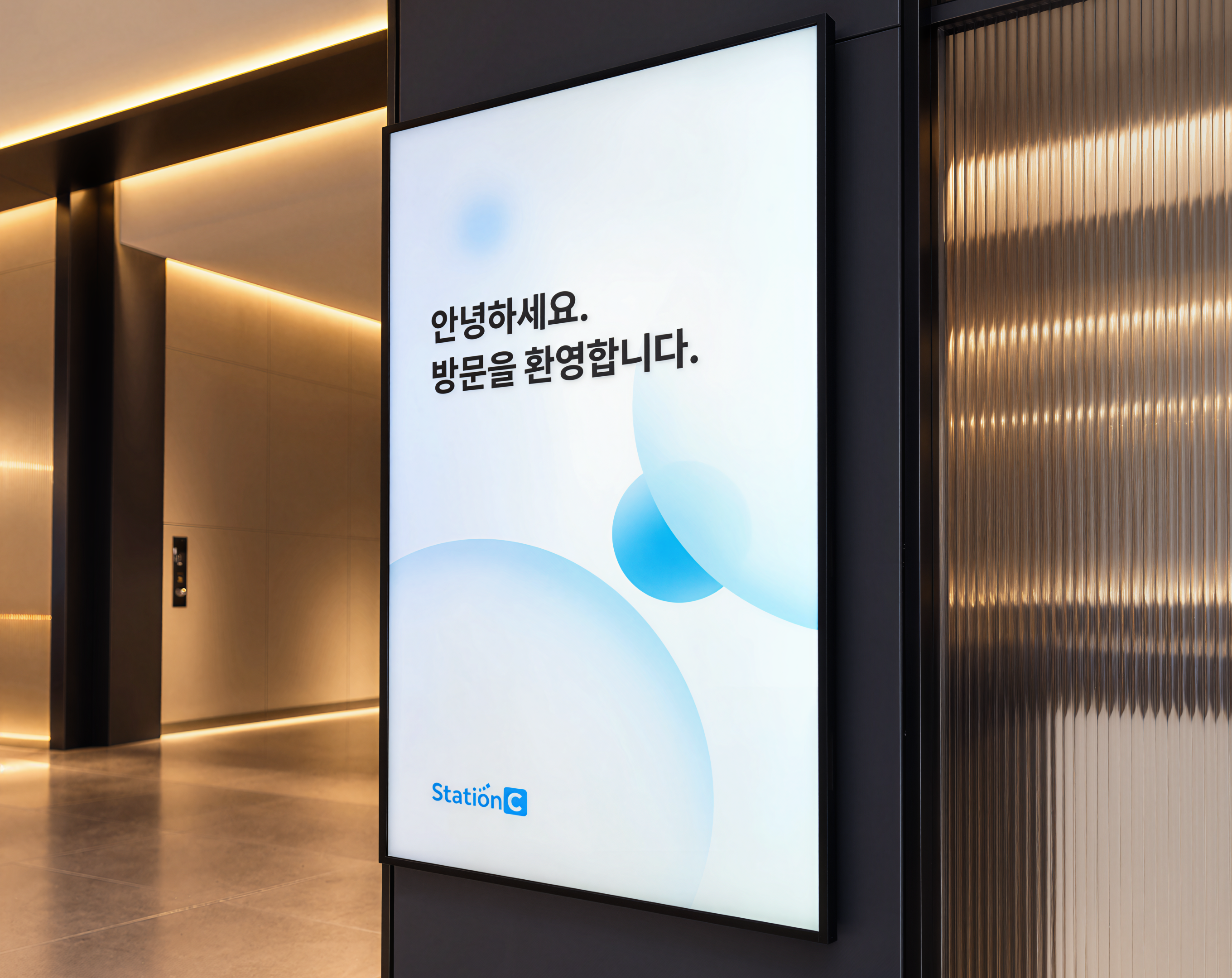
Overview
All Your Work in a Single Screen
BRICK Lit is a digital signage service created by H9.
From uploading media, creating playlists, and scheduling playback, to remotely monitoring installed devices—everything is managed seamlessly through a single web interface.
Concept
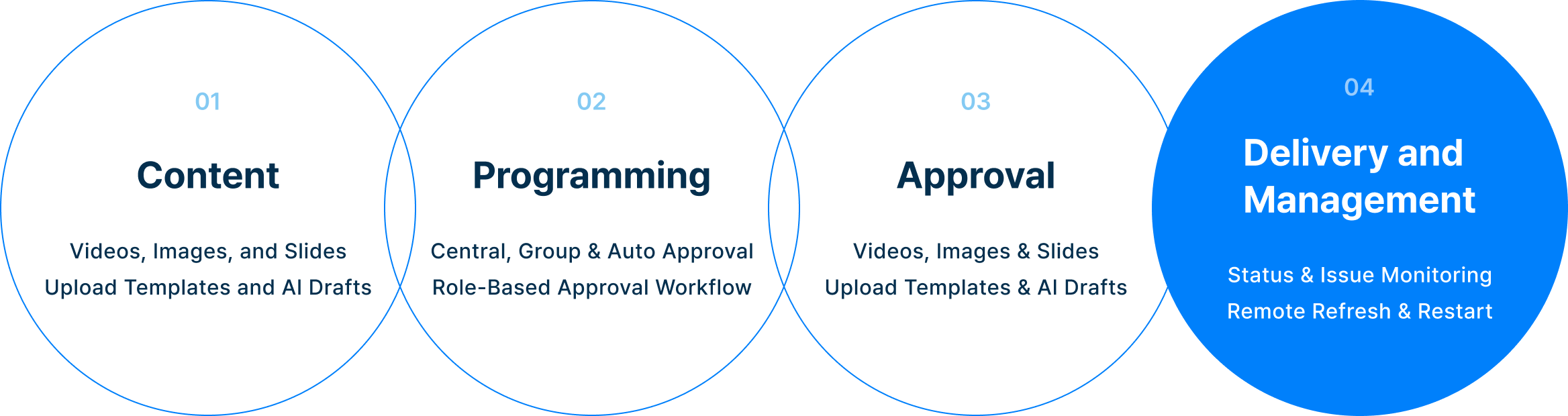
Four Steps into One Unified Workflow
Uploading content, organizing playlists, acquiring approval, publishing, and monitoring
screens—the entire process is completed within
one web admin console.
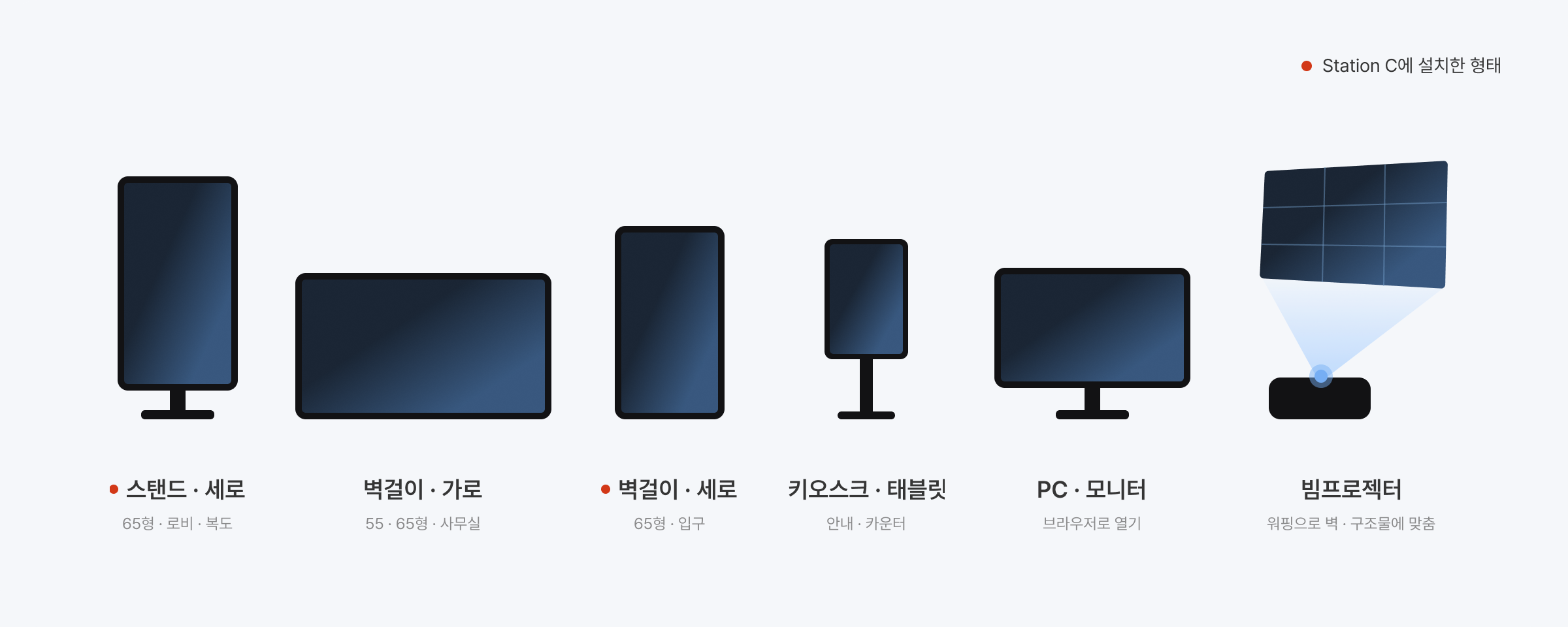
Any Screen, Unified Management
BRICK Lit turns any screen into a player as long as it has an internet connection and a web browser.
The same web player automatically adapts to each display's orientation and resolution, while individual device settings can be configured
directly from the admin panel.

Space
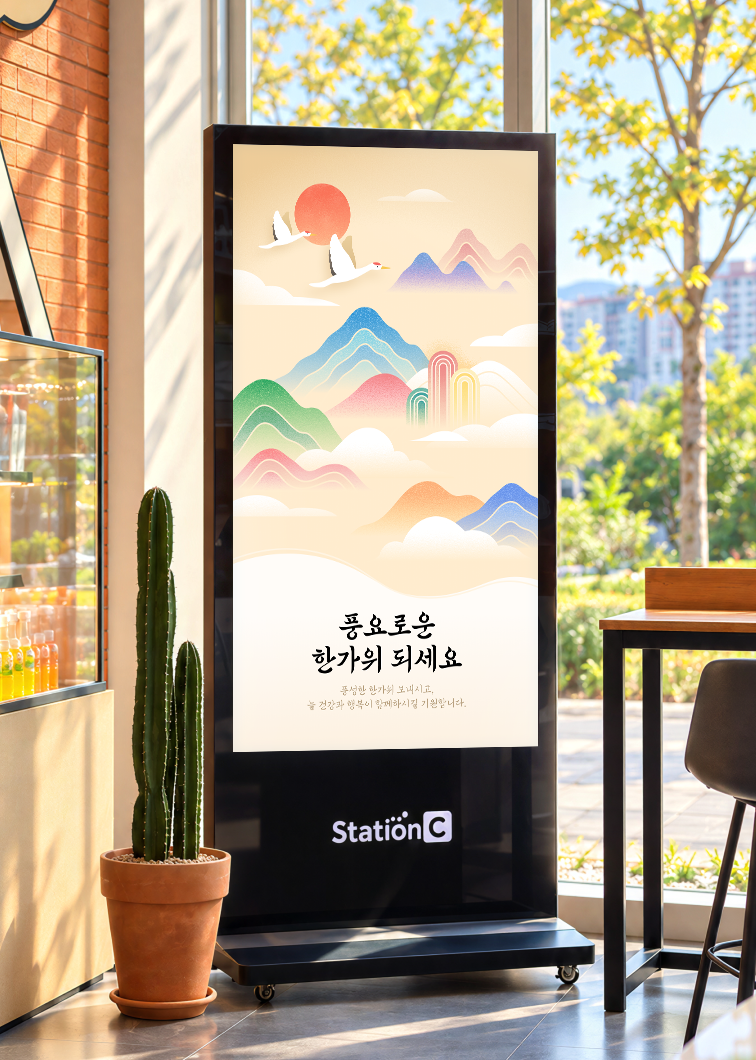
20 Displays Deployed Across Partner Institutions
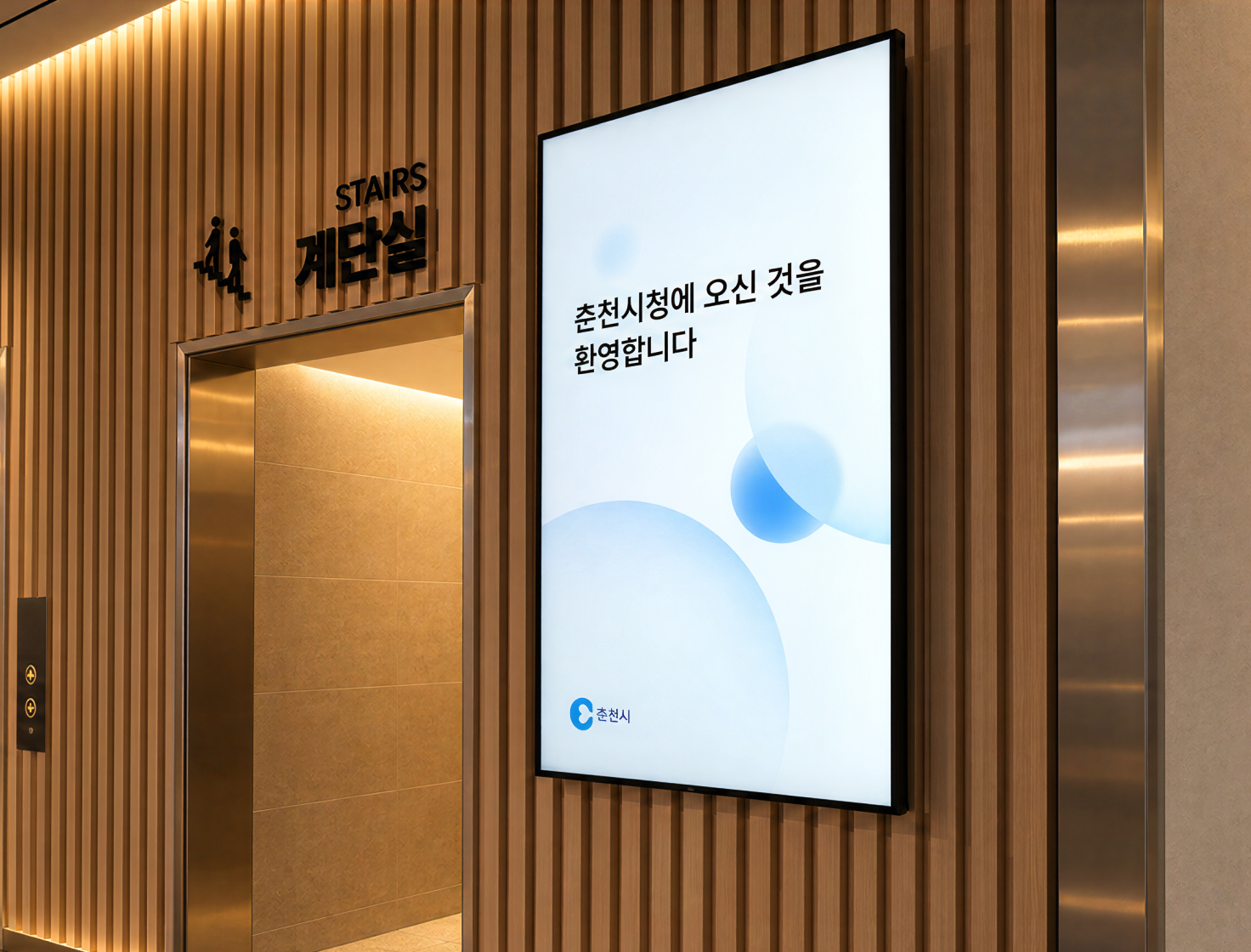
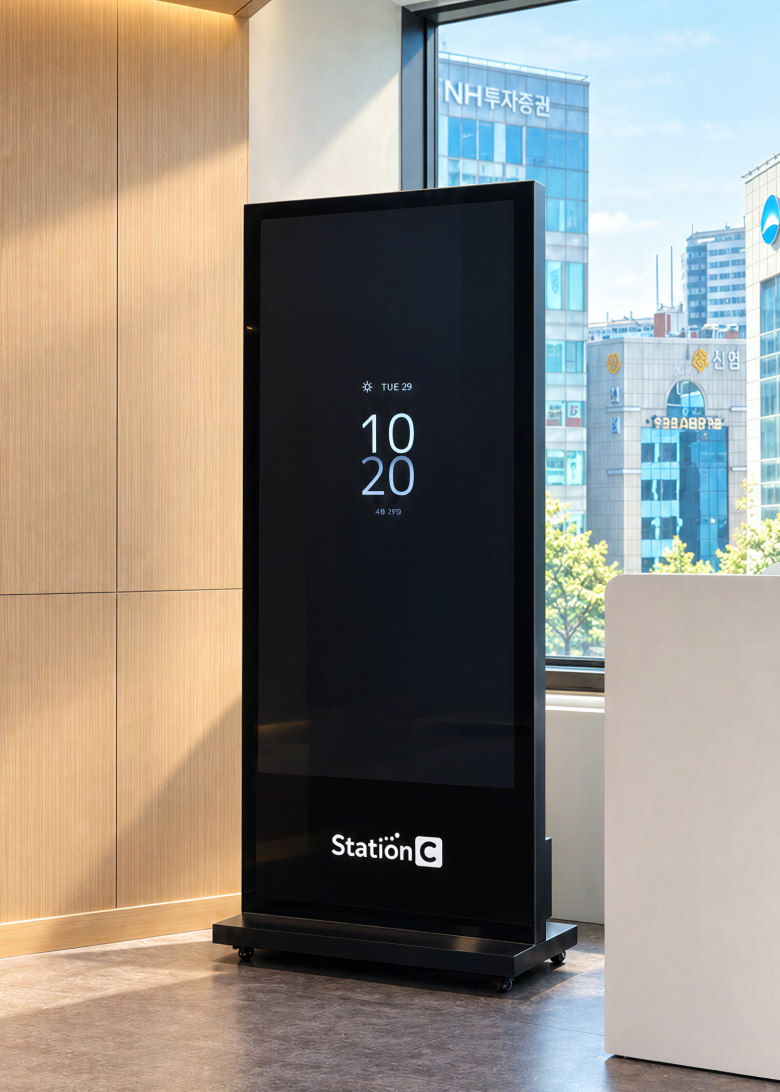
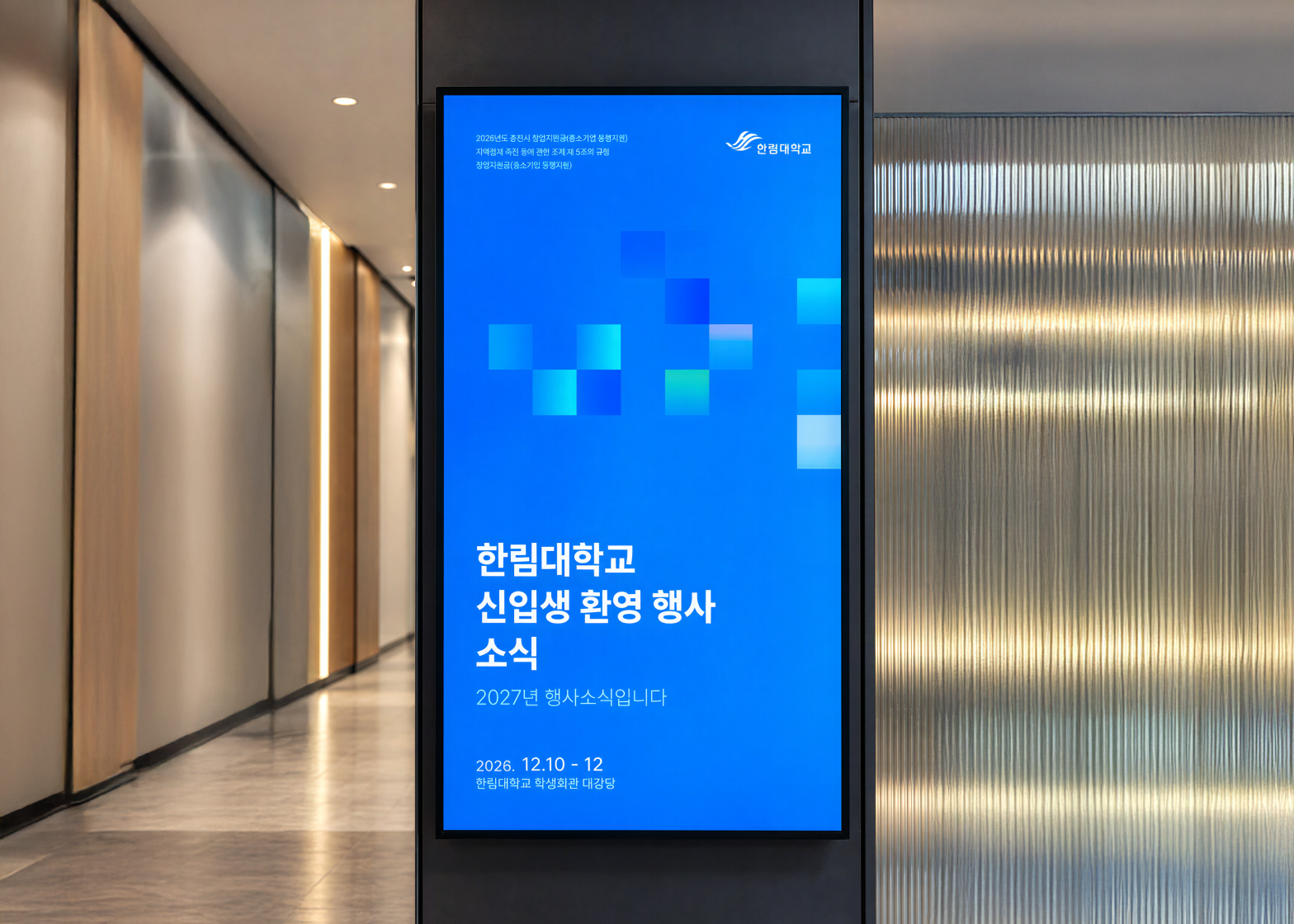
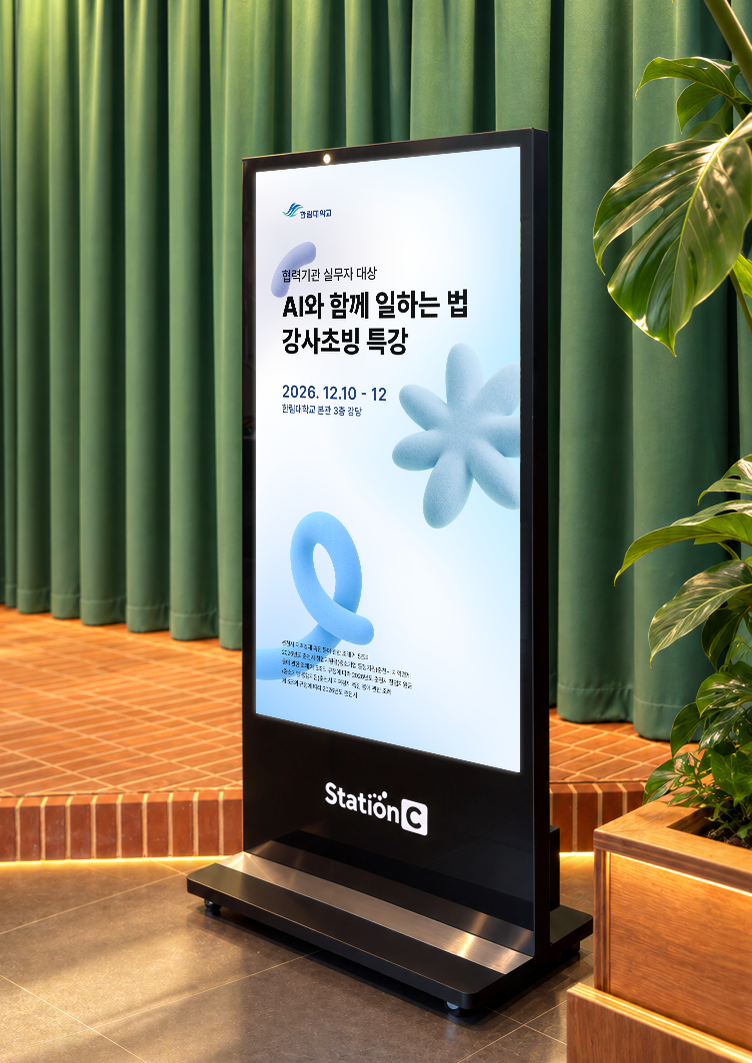
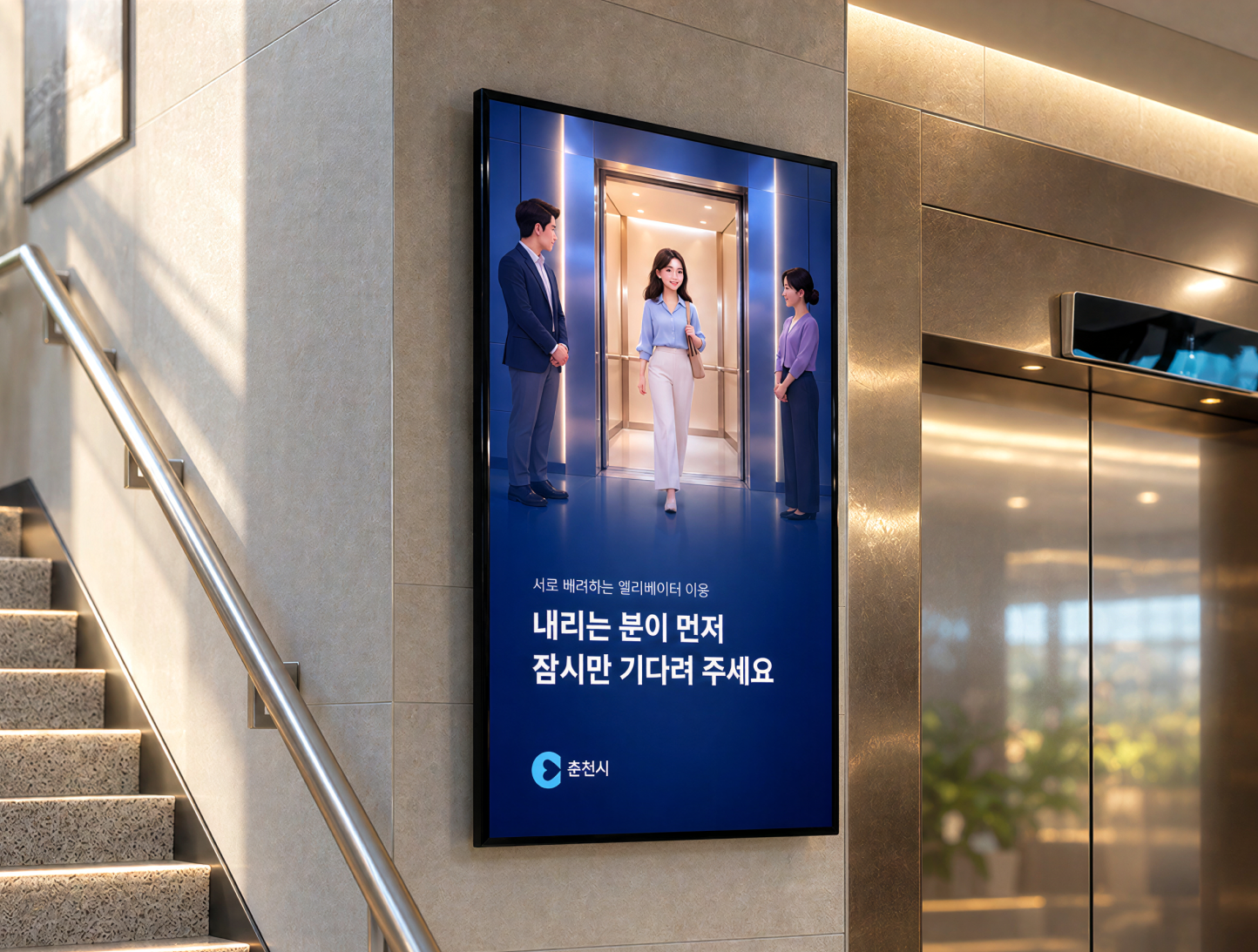
Displays were installed in the offices and shared spaces of Station C's partner institutions.
A total of twenty 4K Android displays—six 55-inch and fourteen 65-inch models—were deployed using either wall mounts or
floor stands to suit each space.
Features
Four Menus, One Unified Rule
The admin interface is streamlined into four simple menus: Playlist, Schedule, Layout Management, and History.
Built on a cohesive design language, the interface delivers a consistent user experience across every screen.
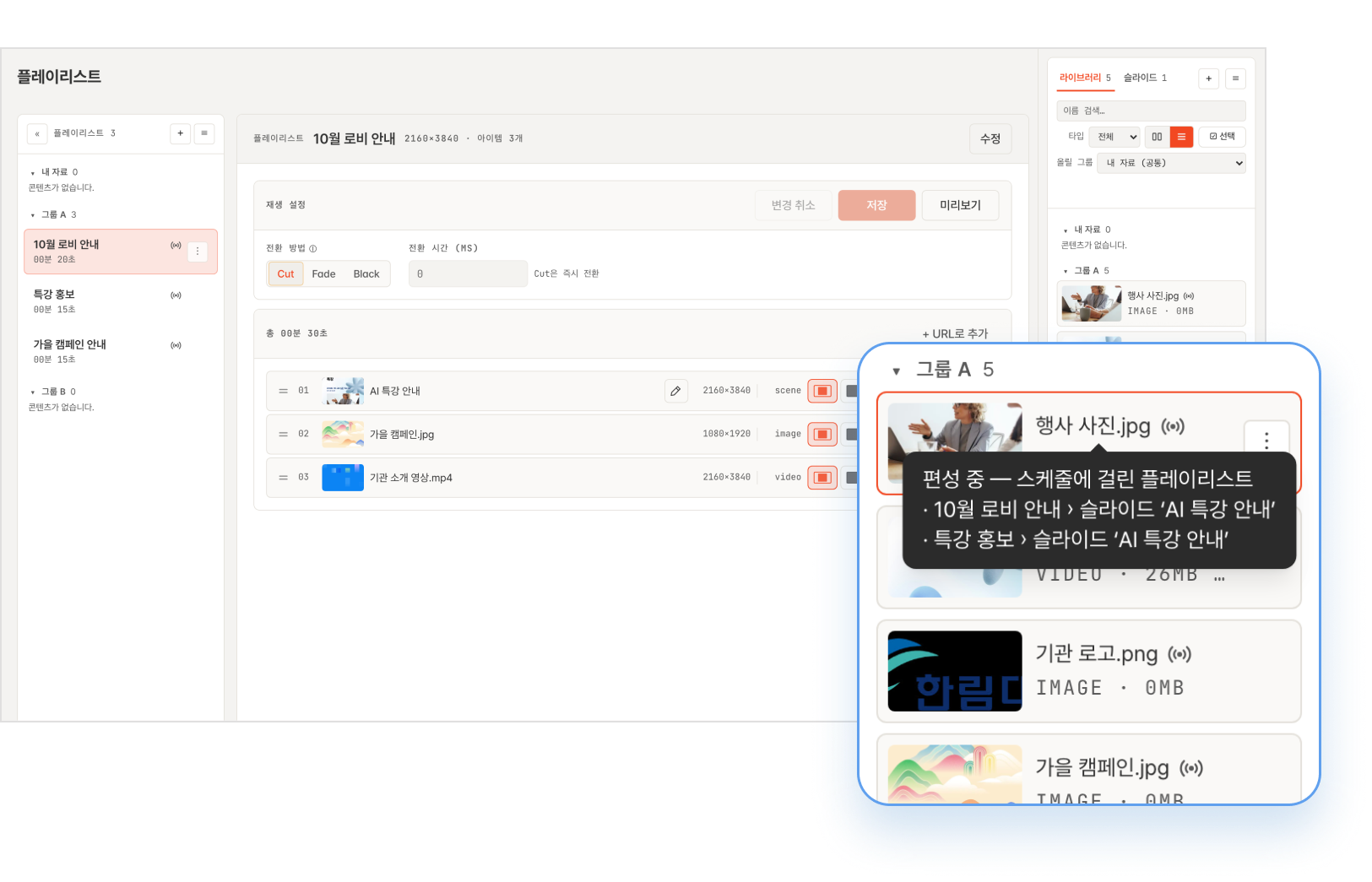
Upload media, drag to create playlists. The server automatically optimizes playback for each screen’s resolution.
- 01
Three-Pane View: Playlists,
Editor, and Library - 02
Drag and Drop to Reorder
- 03
Currently Airing Indicator —
Live On-Screen
- 01
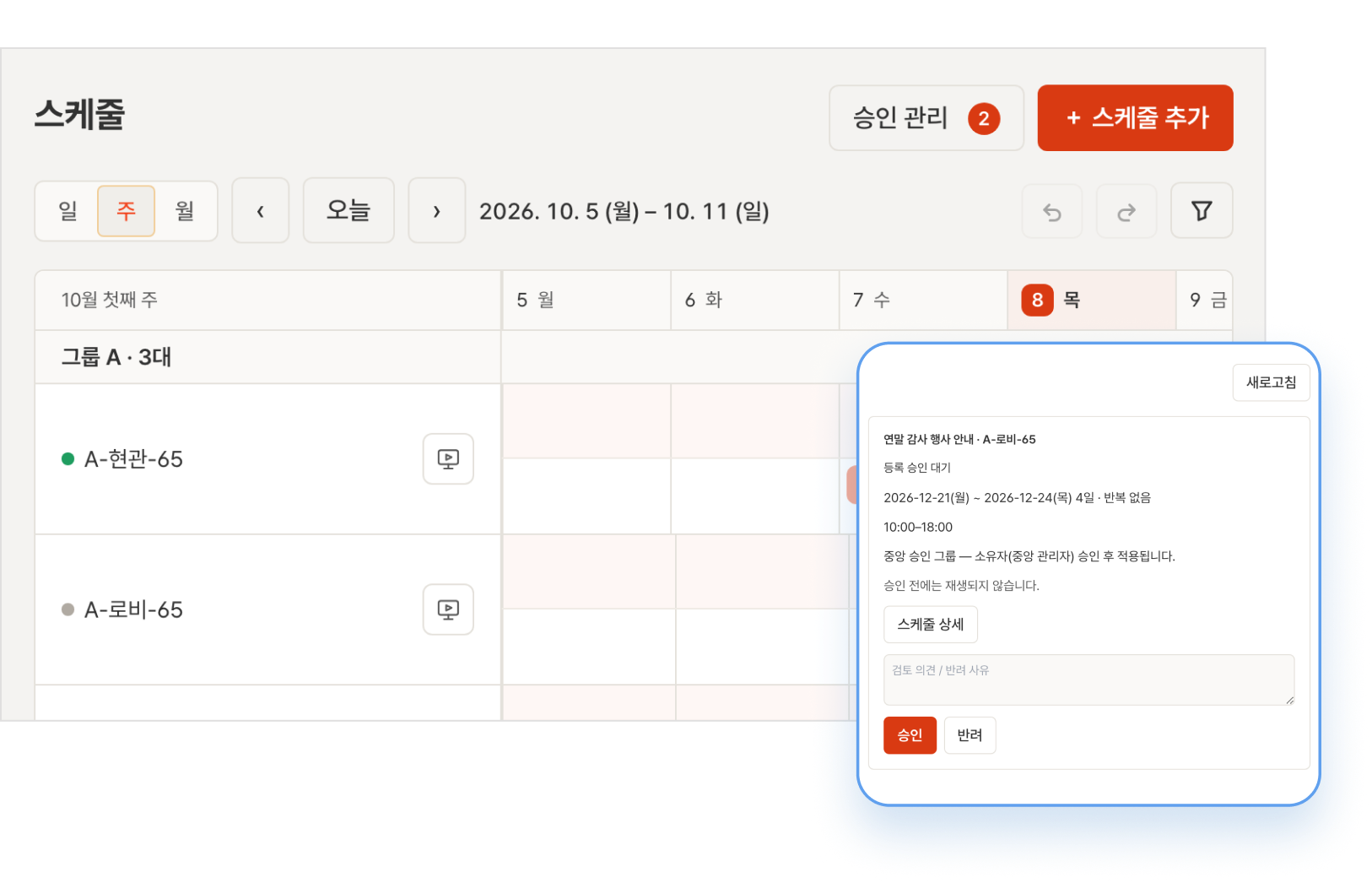
Schedule by date, day, and time—for all, groups, or individual displays.
Request and submit for approval based on assigned permissions.- 01
Weekly Schedule by Device
- 02
Pending Approval
- 03
Approve or Reject in One View
- 01
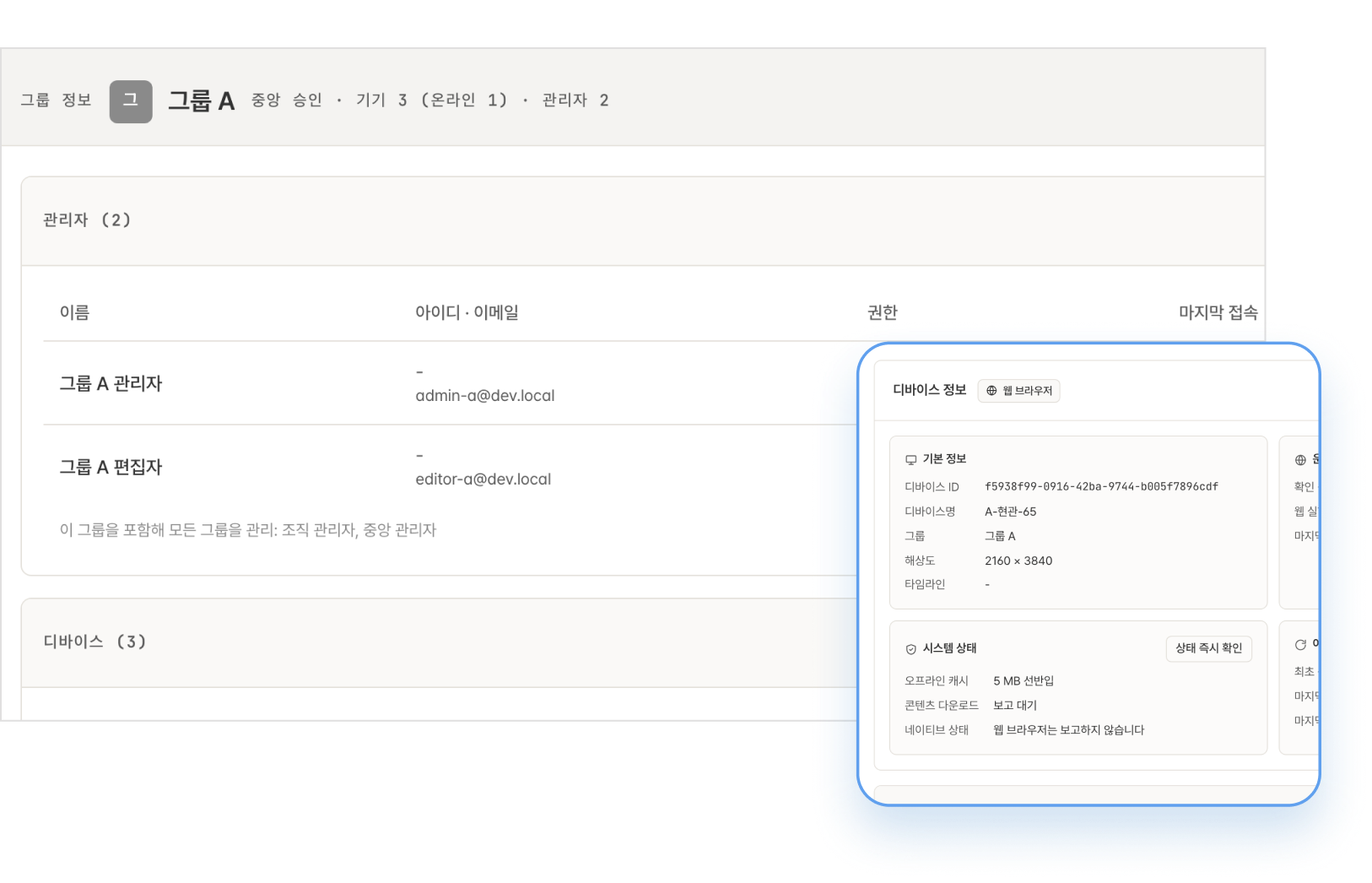
View groups, admins, and devices at a glance. Connect new devices via QR or device code, and manage them remotely.
- 01
Group, Admin, and Device
Overview - 02
Playback Status at a Glance
- 03
Device Details & Status
- 01
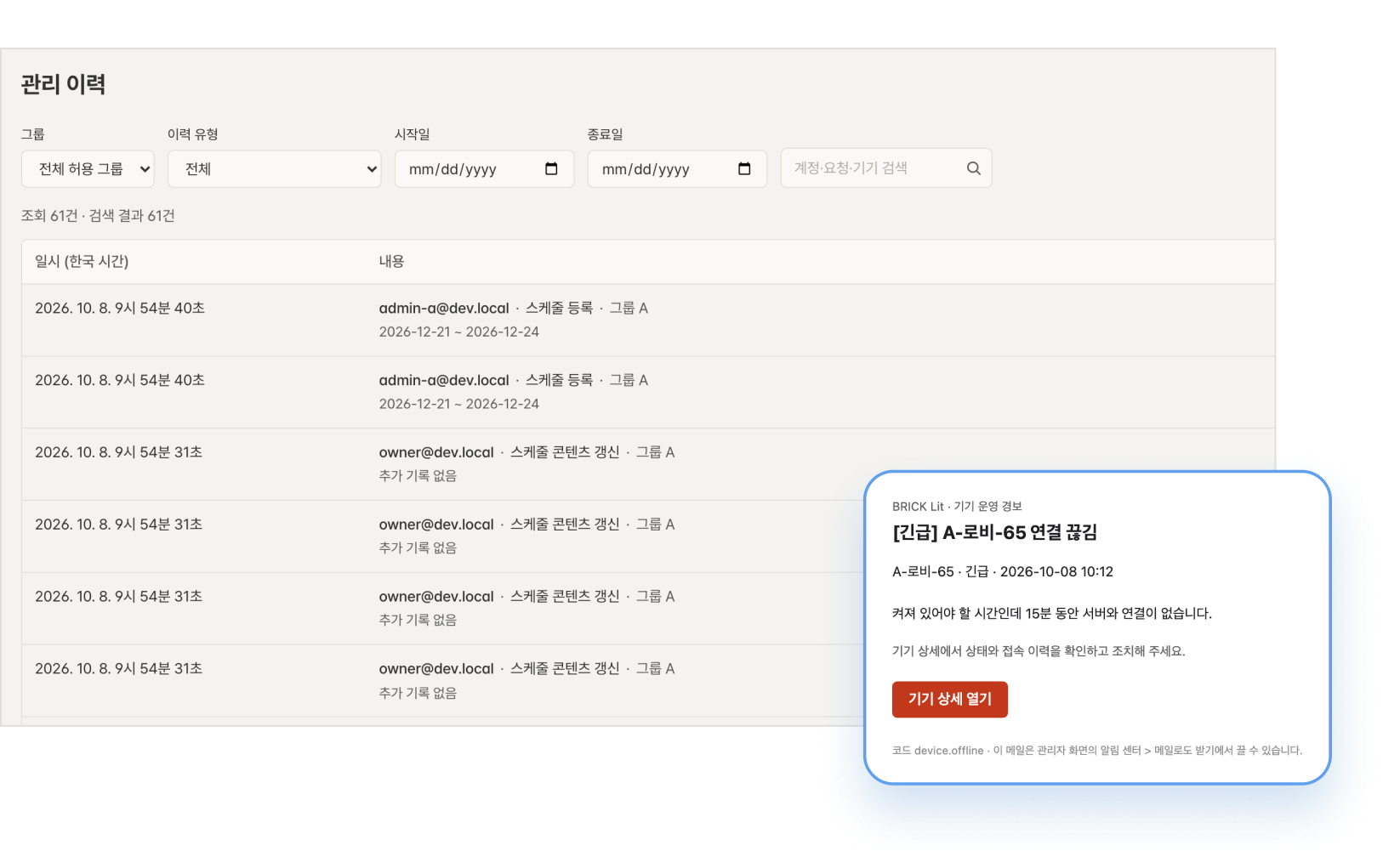
In case of a device error, real-time alerts and emails are sent to admins and operators for immediate action.
- 01
Date & Target Filter
- 02
Who / When / What
- 03
Alert Email
- 01
AI Assistant
From a Single Sentence to Automated Content Creation by AI
Announcements in a single sentence, scheduling with just a prompt. AI fills in the details and sets the plan, while you simply review.
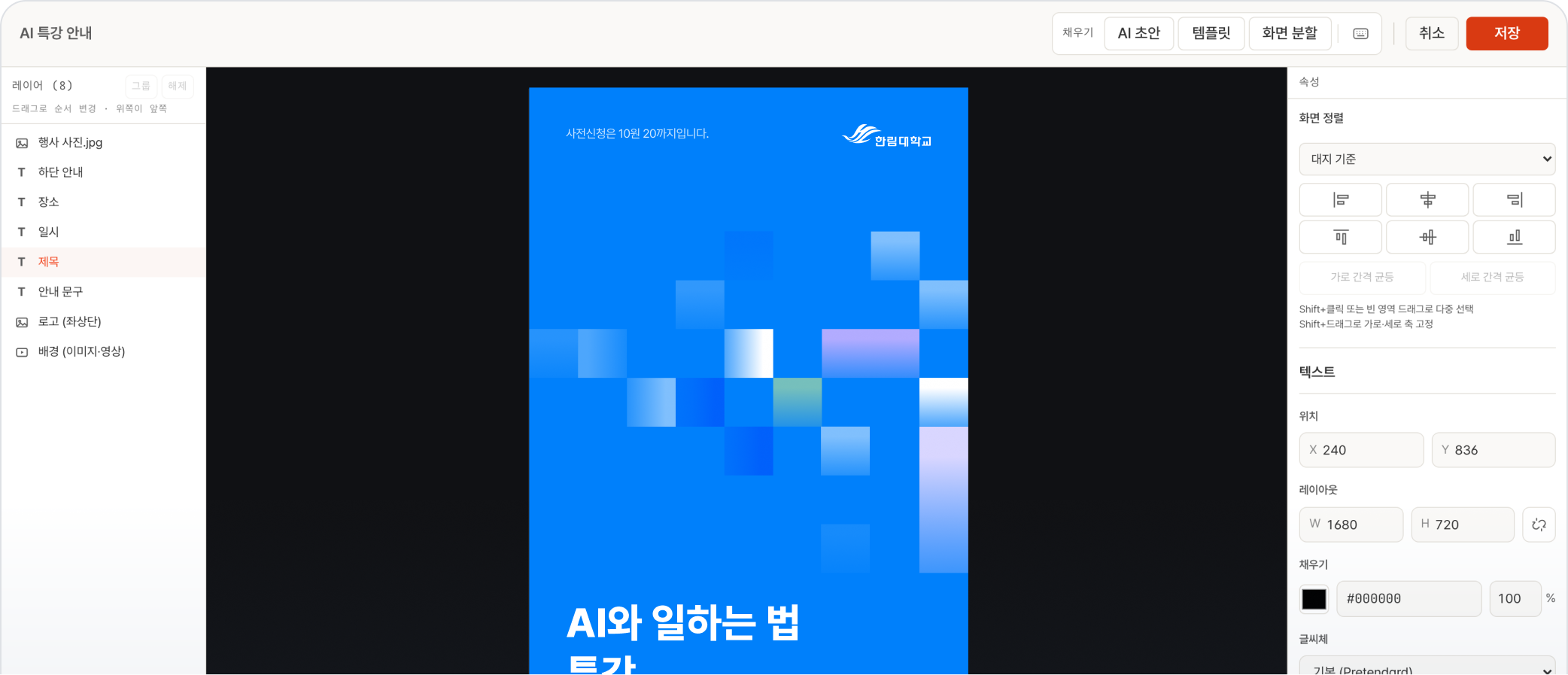
Type a single sentence into the slide editor, and AI automatically formats and populates the template with the title, date, location,
and notice text.
With the canvas filled automatically, anyone can achieve high-quality,
consistent results quickly and effortlessly.
Easily Refine on an Editable Canvas
Natural Language Scheduling with AI Approval
Simply type your request in natural language to the Assistant located in the bottom-right
corner of the admin interface.
It understands your intent and clearly presents the target
devices, schedule, and approval status at a glance before taking action.

Technology
Uninterrupted Playback with Smart Fallback
Displays pre-download scheduled content prior to playback. Even if the internet connection drops, the display keeps playing
seamlessly and automatically syncs to the updated schedule once reconnected.
If playback freezes or a file gets corrupted, the system skips to the next playable content to ensure continuous operation.
Any issues are logged on the server and flagged as errors in the admin console for swift response.
- Normal Operation
Local Data Playback
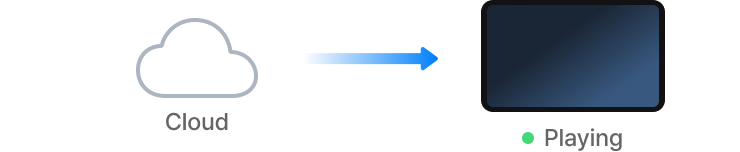
Stores scheduled videos, images,
and upcoming content directly on the device. - Network Disconnection
Local Backup Playback
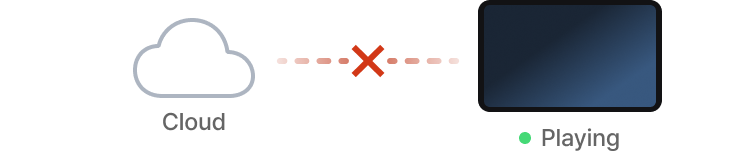
Plays stored media using the last valid schedule.
Retains the same schedule even after a power cycle. - Reconnection
Instant Schedule Sync
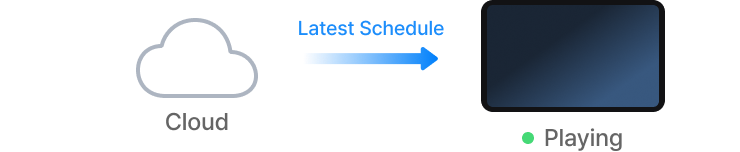
Fetches the latest schedule upon reconnecting,
adjusts the display automatically, and resumes playback.